updated:
this guide assumes you can log in to your linux machine
install PostgreSQL
as Proxmox LXC using community scripts
var_os='debian' bash -c "$(curl -fsSL https://raw.githubusercontent.com/community-scripts/ProxmoxVE/main/ct/postgresql.sh)"start the container and log in
OR from Debian repository
apt update && apt install postgresql postgresql-contribverify PostgreSQL is running
service postgresql statusOR log in to PostgreSQL server
ssh root@192.168.0.xxxPostgreSQL is managed using terminal utility called ‘psql’
use linux user ‘postgres’ to login as superuser ‘postgres’
sudo -u postgres psql postgresnow you are logged in PostgreSQL shell
postgres=#create new user
CREATE USER username WITH PASSWORD 'pass';allow user to create databases
ALTER USER username WITH CREATEDB;list users and their permissions
\duto exit psql terminal
\qgo to your workstation
open DaVinci Resolve, go to Network, Add Project Library, Create
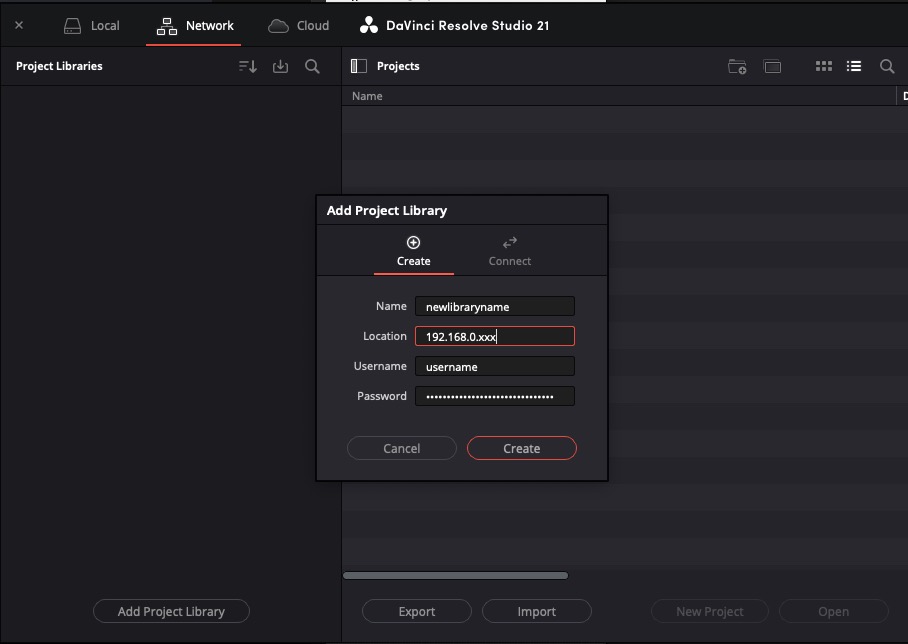
choose your ‘newlibraryname’
use static IP address of your PostgreSQL instance
and the username and password of your new PostgreSQL user with database creation allowance
to see the recently created database
log in to PostgreSQL server
ssh root@192.168.0.xxxlog in to PostgreSQL shell
sudo -u postgres psql postgreslist databases
\lexit
\qto remove unused database
log in to PostgreSQL server
ssh root@192.168.0.xxxbackup important data, there is no going back
all users must be disconnected
log in to PostgreSQL shell
sudo -u postgres psql postgreslist databases
\lremove database, quotes are only needed, if the database name starts with a number
DROP DATABASE "unused-database-name";exit
\q